How to Set Up a Proxy in Linken Sphere
Set an external proxy in the Connection block of a Linken Sphere session, or save it in Proxy Manager and assign it to that session. Check proxy and geo, then verify a request from the launched session.
Documentation reviewed 31 October 2026 · Proxyca setup guide
Get your Proxyca connection details
Residential proxies
Buy a GB package. Open My proxies → Generate, choose quantity, country, city, protocol and rotation or sticky settings, then generate your connections.
Datacenter proxies
Open Static proxies, choose country, IP quantity and rental period, then pay. Open the issued order in My proxies.
Copy the host, port, username and password for one connection. The hostname:port:username:password format puts those four fields in that order. In a browser with separate fields, paste each value into its matching field and select the issued protocol.
Have the issued endpoint ready
Open the connection details supplied with your proxy order. Keep the host, port, protocol and any username and password together. Use the values for the same endpoint; do not combine a port from an example with credentials from an order.
A hostname is entered as issued. A port is a connection setting, not an IP address. When authentication is required, the proxy username and password are separate from your Linken Sphere account login. Keep them out of screenshots you send to a public forum.
Assign the endpoint to a named session
- Create or edit the intended session and open its Connection block. Select the appropriate external proxy type, such as HTTP/HTTPS or SOCKS5, for your issued endpoint.
- Enter the host, port and any login and password. The documented formats include host:port:login:password and login:password@host:port.
- Run Check proxy and geo and review the returned connection information. Keep the check result with the session name and time.
- Save or create the session, then launch that same session. If using Proxy Manager instead, select the intended saved entry and apply it to the session before testing.
Menu labels can vary by version. These instructions follow the Linken Sphere session Connection settings.
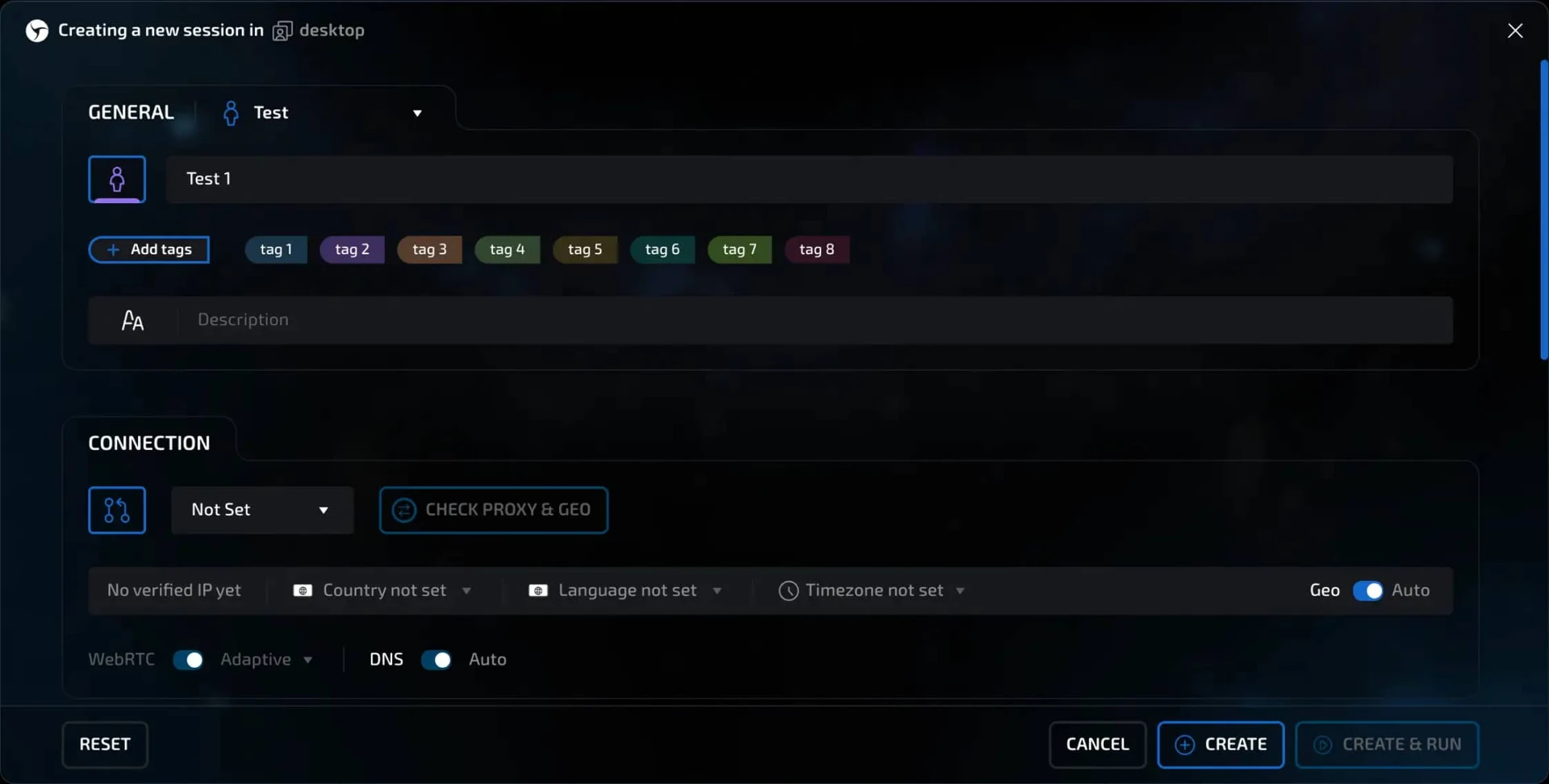
Keep external proxies separate from built-in products and presets
Direct, Free Proxy and Sphere Proxy are different connection choices from an external HTTP or SOCKS5 endpoint. A built-in product selection does not import a Proxyca order. Inspect the session’s actual connection choice before comparing test results.
Linken Sphere also supports proxy settings in presets used to create sessions. For a first test, make one named session easy to inspect. If a preset is involved, check the connection in the resulting session rather than assuming the saved preset still contains the intended endpoint.
What the proxy controls look like
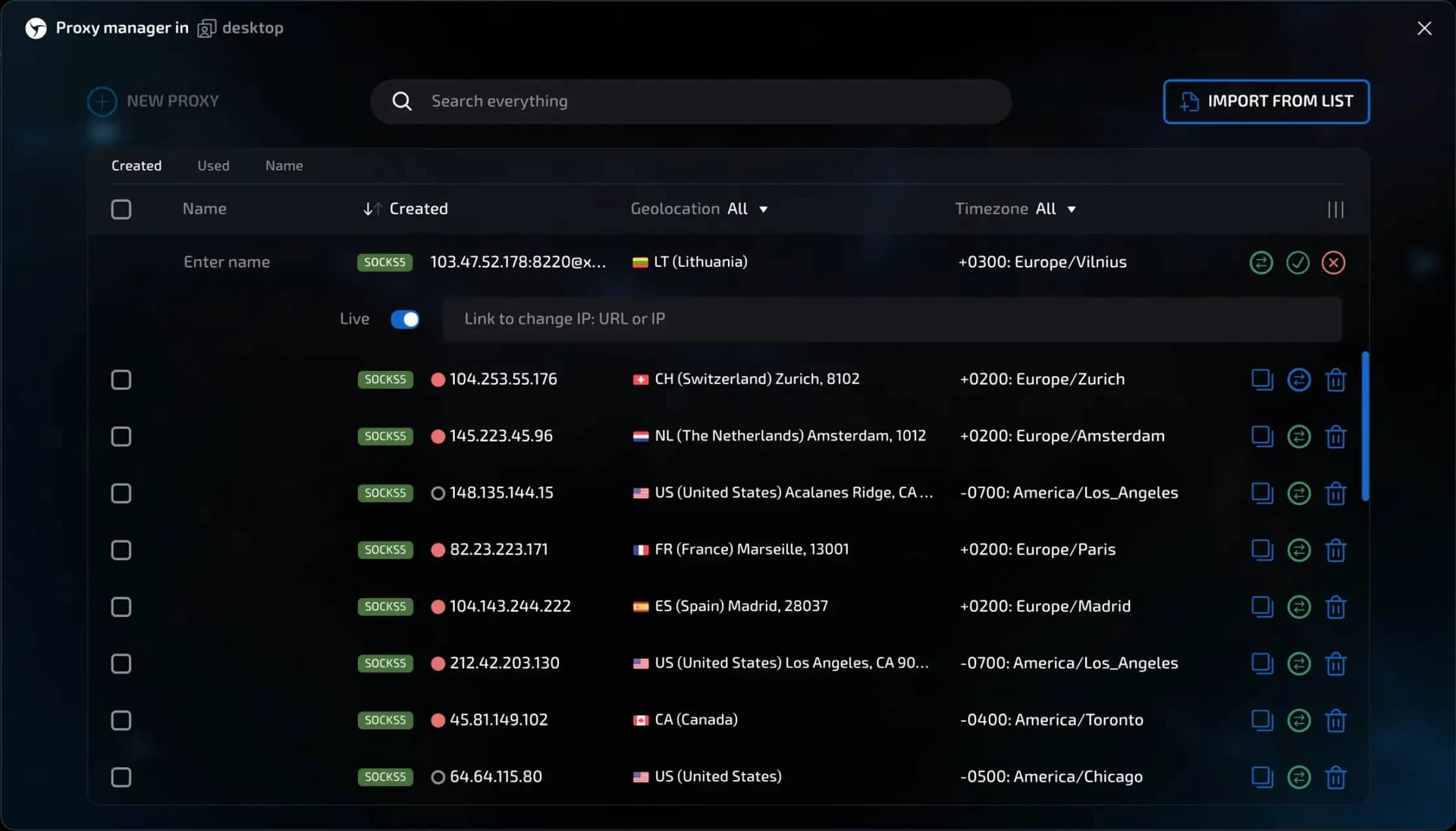
The images show the developer’s documented interface. Example credentials or profile names in them are not a Proxyca endpoint; enter the details issued with your own order.
Compare the checker with the launched session
After checking the connection, launch the saved session and open an IP lookup inside its browser window. Record the address, lookup service and time. A lookup in an ordinary browser or a different Sphere session would describe a different request.
The proxy manager can check and store entries before they are applied to sessions. Record the entry name, host and port as well as the session name. If the session’s observed result is unexpected, first inspect that assignment rather than importing the same list again.
Use an IP-change link or dynamic-proxy mode only when it matches the product’s supplied behavior and documentation. An application option does not establish rotation support for your order. Keep your initial endpoint and test request stable while investigating a setup error.
The public IP tool checks the request from the browser window where you open it. It does not test an endpoint configured only in another application.
If the first attempt fails
Change one setting at a time and repeat the same request. Start with typing or paste errors, the selected protocol, and the active order. When an import string parses unexpectedly, inspect its fields rather than repeatedly pasting the whole value.
For an HTTP proxy response of 407, investigate proxy authentication. A different destination error needs its own diagnosis; a failing page alone does not identify which component rejected the request. See the connection testing guide for a fuller sequence.
To troubleshoot the connection, record the order number, application version, endpoint host and port, selected protocol, test time and exact error. Redact passwords and tokens. State whether the failure happens in the checker, the launched profile or only one destination.
Linken Sphere proxy questions
Does Direct use my purchased external endpoint?
Direct is a separate connection choice. Select and inspect the external proxy settings or the appropriate saved entry for this setup.
Can a saved proxy be assigned through a preset?
Linken Sphere documents proxy parameters in presets. Check the resulting session’s endpoint after creating it, especially when reusing an older preset.
Does a successful geo check guarantee destination access?
No. Verify the request inside the session and then check the intended destination separately. Keep the results and any error response in your support report.
Choose a product for your connection requirements
Compare the available plans by billing unit, required location and application compatibility. A successful proxy connection is not a guarantee that a website will accept an account or request. Use the service within the destination’s rules and your authorization.
All application setup guides include the existing AdsPower walkthrough. For current interface details, also see Linken Sphere proxy manager and assignment instructions.
Choose a proxy for your browser profiles
Use residential traffic for country and city settings, rotation or sticky sessions. Start with 1 GB for $8, then generate connections in Telegram. Choose datacenter rental when your profile needs a static rented IP: from $2.50 per IP for 30 days.
Residential packages → · Static IP plans → · Test your connection →