
Get your Proxyca connection details
Residential proxies
Buy a GB package. Open My proxies → Generate, choose quantity, country, city, protocol and rotation or sticky settings, then generate your connections.
Datacenter proxies
Open Static proxies, choose country, IP quantity and rental period, then pay. Open the issued order in My proxies.
Copy the host, port, username and password for one connection. The hostname:port:username:password format puts those four fields in that order. In a browser with separate fields, paste each value into its matching field and select the issued protocol.
AdsPower can route a browser profile through a proxy. According to AdsPower's help center, it supports HTTP/HTTPS, SOCKS5 and SSH proxies over IPv4 and IPv6. The profile's proxy settings take a proxy type, a host and port, and a username and password. The browser does not itself provide proxies and has none built in, so you need proxy connection details, either from a provider or from a proxy ordered through AdsPower's partner channel.
This article describes those settings as AdsPower documents them, then covers what the connection test means and how to troubleshoot problems. The screenshots and setup sequence below follow the developer’s documented interface. Menu labels may vary by version; compare the fields with the client you have installed.
What AdsPower supports and what it does not provide
The AdsPower proxy types documentation lists these protocols for browser profiles:
- HTTP and HTTPS
- SOCKS5
- SSH
IPv6 proxies are supported in addition to IPv4. This describes what the AdsPower client can use. It says nothing about what a particular proxy provider or plan offers, so check protocol and IP-version details for the proxy you actually hold.
AdsPower's help center says the browser does not itself provide proxies and has none built in. Its proxy list page describes the Proxies section as a place to store proxies you have already purchased, with options to change the IP, check, edit and delete entries. The same page mentions a Buy proxy option that places orders with a partner provider, FlashID. That is a purchase channel, not a limit on which protocols the browser can use. The AdsPower homepage likewise says there are no built-in proxies and that you can test the proxy connection in AdsPower before using it with a profile.
A proxy is a network intermediary. It changes the route your traffic takes, but it does not give you permissions on any platform, and it does not decide how a website treats your account.
What to have ready
Before opening the profile settings, gather the details that come with your proxy:
| Detail | What it is |
|---|---|
| Proxy type | HTTP, HTTPS, SOCKS5 or SSH, matching what the endpoint actually accepts |
| Host | The server's IP address or hostname |
| Port | The port assigned to that endpoint |
| Username and password | Proxy credentials, not your AdsPower login |
Read the protocol from your provider's order or connection details rather than guessing, and use values that belong together. A host from one proxy paired with credentials from another will fail, and so will a type that the endpoint does not accept. For background on one of the supported types, see What Is an HTTPS Proxy and How Do SSL Proxies Work?.
Set up one profile with the documented controls
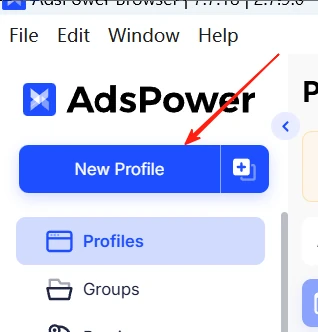
- Choose New Profile in the upper-left menu.
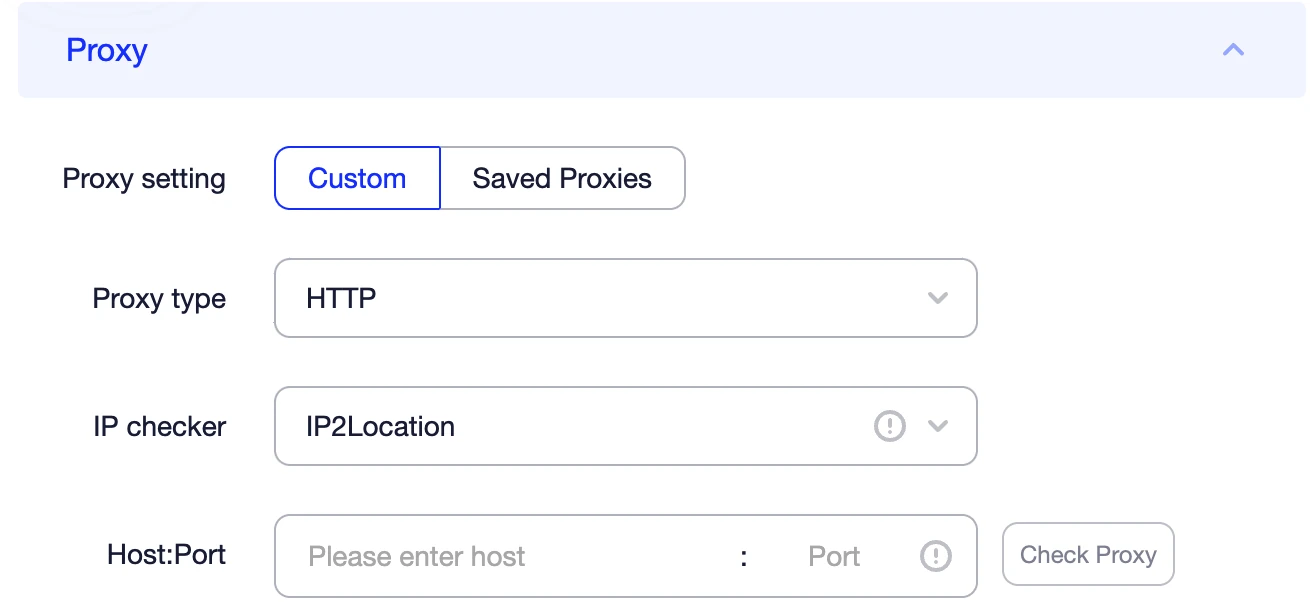
- In Proxy, choose Custom and the protocol supplied for your endpoint.
- Enter the issued host, port and authentication. Use Check Proxy and review the result.
- Save with OK, then open that profile from Profiles. Make a request inside the launched profile to check its connection.
This sequence follows the AdsPower profile creation guide. Keep the result from the connection check separate from the result returned by your destination.
The proxy fields in a profile
Per AdsPower's profile creation guide and the proxy types page, the Proxy section of a profile asks for:
- Proxy type: HTTP, HTTPS, SOCKS5 or SSH. The SSH type uses the same fields as the others.
- Host:Port: the server address and port.
- Proxy username and password: the credentials for that proxy.
- A connection check: a Check Proxy step you run before creating the profile.
The docs also describe two shortcuts. First, you can paste details into the Host:Port field in the form IP:port:username:password, and the remaining fields fill in automatically. For example, with placeholder values only:
203.0.113.10:8080:USERNAME:PASSWORDAlways review the populated fields afterwards for stray spaces or values in the wrong place; if parsing gives an unexpected result, enter each value separately. Second, instead of typing details again, you can pick a proxy already stored in the Proxies section as a saved proxy. The docs describe adding entries to that list in a URL-like format, with examples for SOCKS5 and for an IPv6 HTTP proxy, plus optional Change IP URL and Remark parts.
Never paste real credentials into screenshots, tickets or public pages.
What the connection test tells you
AdsPower's documentation defines two outcomes:
- Connection test passed: AdsPower connected to the proxy successfully.
- Connection test failed: AdsPower could not connect to it.
That is all the test is documented to say. A pass does not tell you how a particular website will respond, how a platform will assess an account, or whether anything else about your setup is correct. It also does not describe DNS behavior; the help page does not claim that. Treat a pass as the first checkpoint, then open the profile and look at what a page actually reports.
For general methods of verifying an address outside AdsPower, see How to Check Proxy: Step-By-Step Guide. Whether the check treats every proxy type in exactly the same way in your installed client is something to confirm in the app itself; the docs list HTTPS as a supported type and do not go further than that.
Other proxy-related options
A few documented settings change how profiles use, or skip, the proxy:
- Change IP URL: an optional field the docs describe as exclusive to mobile proxies. If several profiles share the same proxy, refreshing the link changes the IP for each of them, so check which profiles are attached before using it.
- No Proxy (Local network): profiles set to this option load URLs through a direct connection, without a proxy.
- Open only with an available proxy: a Global Settings option so that profiles do not open if the proxy inside them does not work.
- Proxy detection page: Global Settings also has an option to disable the detection page shown when a profile starts.
- Local network access: Global Settings lets you list URLs that load through the local network instead of the proxy. This is a deliberate bypass, so any address on that list will not follow your proxy routing.
If a page shows your own location when you expected the proxy's, check these settings early.
DNS: guidance from AdsPower's blog
The following comes from AdsPower's blog post on DNS leaks, not from its help-center documentation. The post describes DNS resolution as a separate step from loading a page. It recommends running AdsPower's own DNS leak test tool after any change to your proxy setup, and reviewing things like OS-level custom DNS and VPN or proxy extensions inside the profile. It also suggests attaching the proxy at the profile level instead of relying on a system-wide proxy.
Nothing here means that Check Proxy verifies DNS, and no test result can be promised for your setup. Run the tool yourself after changes and read the result for your own configuration.
Troubleshooting with official guidance
AdsPower's proxy configuration troubleshooting guide suggests clearing system-level proxy settings that can interfere:
- Windows: remove the HTTP_PROXY and HTTPS_PROXY environment variables.
- macOS and Linux: disable Web Proxy (HTTP) and SOCKS Proxy in the network settings.
AdsPower's troubleshooting blog post adds that if your local IP appears instead of the proxy IP, the likely cause is a conflict with encrypted-connection extensions or other tools that alter the network. It also points to Network diagnostics in the account menu at the top right, including a detection for the local network and system proxy.
The August 2026 release notes describe a Network Diagnostics feature that can identify why a proxy connection fails or the exit IP differs from the expected one. It checks whether the cause is system proxy settings or a local proxy or VPN tool, and it gives troubleshooting steps.
Use this table to decide where to look first:
| Symptom | What to check |
|---|---|
| Connection test failed | Host, port, proxy type, username and password; whether the proxy is still active |
| Profile will not open | Whether the open-only-with-an-available-proxy option is on and the proxy inside the profile is working |
| Local IP shows instead of the proxy IP | VPN or encryption extensions, system proxy variables, and any local-network URL list |
| Test passes but one site fails | Record the site's exact error; the test only covers the connection to the proxy |
| Several profiles changed IP at once | Whether they share one proxy and a Change IP URL was refreshed |
Change one setting at a time so you know what fixed the problem. If errors continue after the proxy connects, Why Your Proxy Is Not Working: Errors and Fixes separates network faults, authorization errors and rate limits.
FAQ
Does AdsPower include proxies?
AdsPower's help center says it does not provide proxies itself or have any built in, and that its Proxies section stores proxies you already have. It does describe a Buy proxy ordering option with a partner provider. That option is a purchase channel, not a protocol limit of the browser.
Can I use my AdsPower password as the proxy password?
No. The proxy fields take the credentials for the proxy itself. Your AdsPower account login is separate.
Does a passed connection test mean my accounts are safe?
No. It only means AdsPower connected to the proxy. It says nothing about how a website or platform will treat an account, and a proxy does not grant any account permissions. Follow each platform's own rules and security requirements.
Next step
Once you have the host, port, protocol and credentials for your proxy, enter them in the profile and run the connection check.